
The demos
A demo is an application the board reports on the Home tab. Run Application starts it, and Application Dashboard on the active card opens the screen that shows what it is doing.
Keyword Spotting on the AkidaTag
Section titled “Keyword Spotting on the AkidaTag”The AkidaTag listens through its microphone for ten keywords: down, go,
left, no, off, on, right, stop, up and yes. It runs the model
on its AKD1500 from power-up whenever a model is stored, whether or not a
phone is connected, and flashes its red LED for about half a second on every
keyword it hears.
The AkidaTag’s microphone is quieter than most. Say the word clearly and close to the board; the result depends on the room.
The dashboard
Section titled “The dashboard”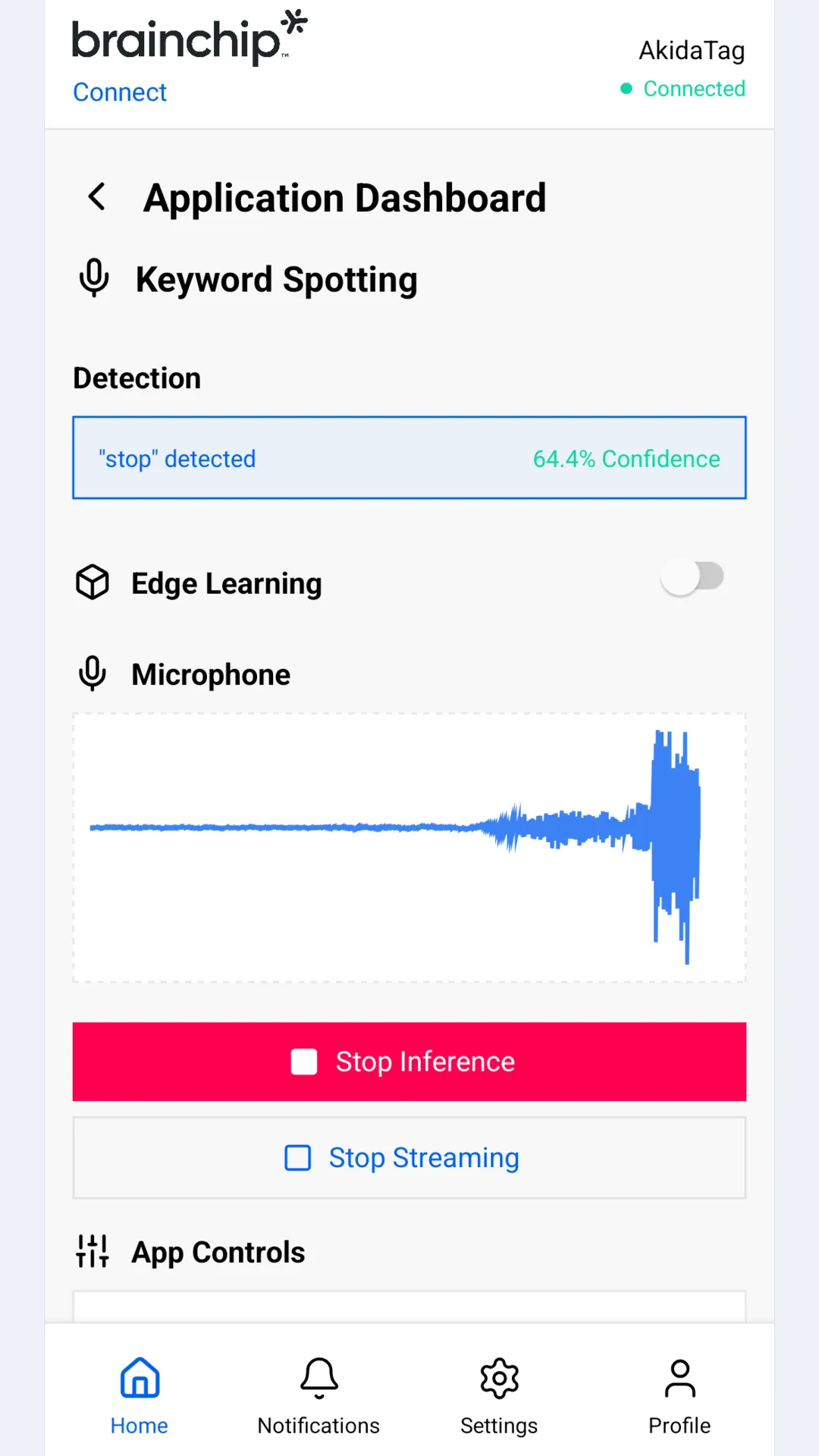
From top to bottom:
- Detection shows the last keyword heard, in quotes, the board’s confidence as a percentage and how long ago it arrived. Before the first one it reads No keyword detected yet. The board reports a keyword when it hears one and nothing in between, so the banner is the latest report, and the time under it says how old that report is.
- Edge Learning teaches the board new keywords. See below.
- Microphone draws what the board hears, while streaming.
- Stop Inference and Start Inference stop and start the detector on the board. Stopping here also marks the application inactive on the Home tab. A stopped detector stays stopped, even after you disconnect, until it is started again or the board is restarted.
- Start Streaming and Stop Streaming turn the microphone waveform on and off. Keywords are reported whether or not you are streaming.
- App Controls are the detector’s tuning parameters, read from the board when the dashboard opens.
App Controls
Section titled “App Controls”| Parameter | Default | Allowed |
|---|---|---|
| RMS threshold | 550 | 0 or more |
| Debounce time (ms) | 300 | 0 or more |
| Smoothing alpha | 0.70 | 0 to 1 |
| Score threshold | 0.50 | 0 to 1 |
| Chiming threshold | 3 | 1 or more |
| Speech timeout (ms) | 1300 | 0 or more |
The detector only listens for speech once the microphone signal is above the RMS threshold, smooths each new score with the previous ones, and reports a keyword once its smoothed score has reached the score threshold for the chiming threshold’s number of consecutive results. After it reports a keyword, the board ignores the microphone for the debounce time, so one word cannot be reported twice. Once the signal has crossed the RMS threshold, the speech timeout is how long it may stay below the threshold before the board decides no keyword was said, discards what it had heard so far and goes back to waiting.
Edit a value and tap Apply; the board confirms each change, and any it refuses is listed with the reason. Reset restores the defaults on the board. The board keeps the values across restarts and returns them to the defaults when its firmware version changes.
Edge Learning
Section titled “Edge Learning”An AkidaTag can learn up to three new keywords on the device itself, using
the AKD1500’s on-chip learning. It needs the model built for edge learning,
akidatag-kws-edge-learning-model.zip from the
latest firmware release,
loaded as described in Load a model.
With any other model the board ignores the learning commands.
The switch and buttons step through the board’s learning modes:
- Switch Edge Learning on. The board pauses keyword detection and enters class selection.
- Next Class cycles through the three learnable classes, which the board
reports as
cls_12,cls_13andcls_14. - Start Learning. After a second the board’s red LED comes on: say the new keyword. Repeat until the board has heard it five times, the LED coming on for each. After the fifth the board saves the class, the app shows Completed, and the board is back in class selection. Switch Edge Learning off to resume detection.
- Delete Class returns all learned classes to the base model. Restart the board afterwards.
Each control changes only once the board has confirmed the command. If the board does not answer, the app says so and leaves the switch as it was. Learned keywords survive a restart and a firmware update.
Nicla Vision with BrainBoard1500
Section titled “Nicla Vision with BrainBoard1500”An Arduino Nicla Vision carrying a BrainBoard1500 can run BrainChip’s
Bluetooth demo sketch, bb15_nicla_vision_connect from the
brainboard1500_arduino_library
repository. It advertises as BrainBoard1500 and works with the same app.
These are the differences from the AkidaTag.
- Two demos, both sent from the app. No model is built into the sketch.
Send the keyword spotting model and the human detection model with
Model Update; each one
that arrives adds its card to the Home tab. The board decides which demo a
model belongs to by its input shape:
[49, 10, 1]is Keyword Spotting and[96, 96, 3]is Vision Human Detection. A model survives a power cycle, so it only has to be sent once. A model must be built for the Akida engine the sketch carries, 2.5.0; an AkidaTag model will not load on this board. - Starting an application loads its model into the accelerator, which is why the card reads Starting for about two seconds. Only one demo runs at a time.
- Vision Human Detection scores a 96 by 96 crop of the camera about fifteen times a second and reports Person detected once when someone arrives. Nothing is sent when they leave, so the banner shows how long ago the last person was seen and the board’s LED is the live indicator. The dashboard’s Camera section shows what the model sees, in grayscale, while streaming, at about two frames a second. Frames are skipped rather than queued so that detection keeps its pace.
- Not on this board: Edge Learning and Firmware Update, because the sketch offers neither. Everything else works: battery, the application list, the microphone waveform and App Controls.