
The screens
Once a board is connected the app has four tabs. Home is where the board’s applications are, and the other three are described below in the order they sit in the tab bar.
Home: Select the Application
Section titled “Home: Select the Application”One card per application the board reports. An AkidaTag reports one, Keyword Spotting. A Nicla Vision with a BrainBoard1500 reports one card for each model that has been sent to it.
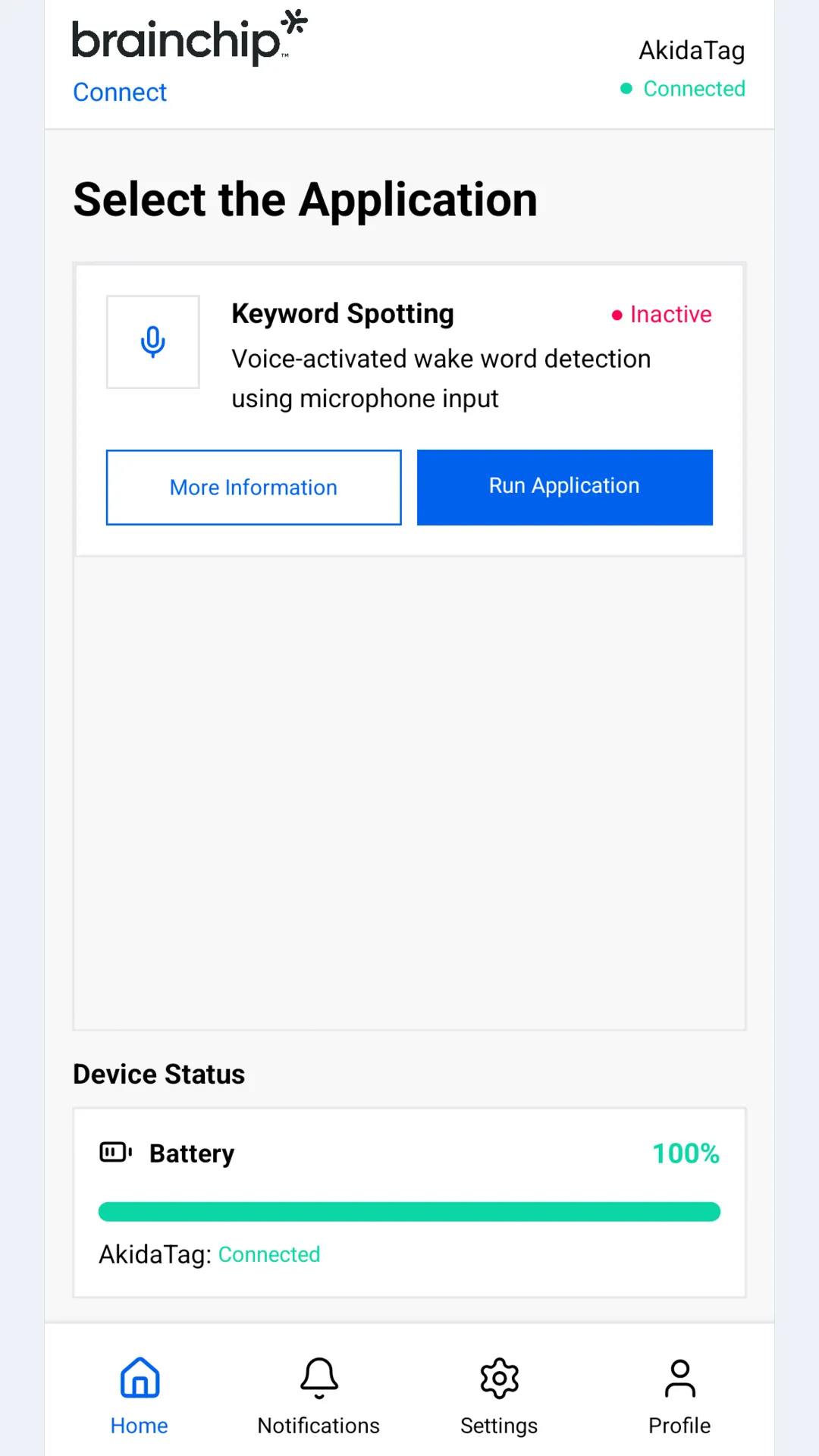
On each card:
- More Information asks the board for the model’s name, its input shape, how many classes it has and the keywords it knows, and shows them under the card.
- Run Application starts the demo on the board. The card reads Starting until the board confirms, then Active. On a BrainBoard1500 the start loads the model into the accelerator first, which takes about two seconds.
- Stop Application stops it.
- The active card also carries the Detection banner and the Application Dashboard button, which opens the demo’s own screen. The demos chapter covers both.
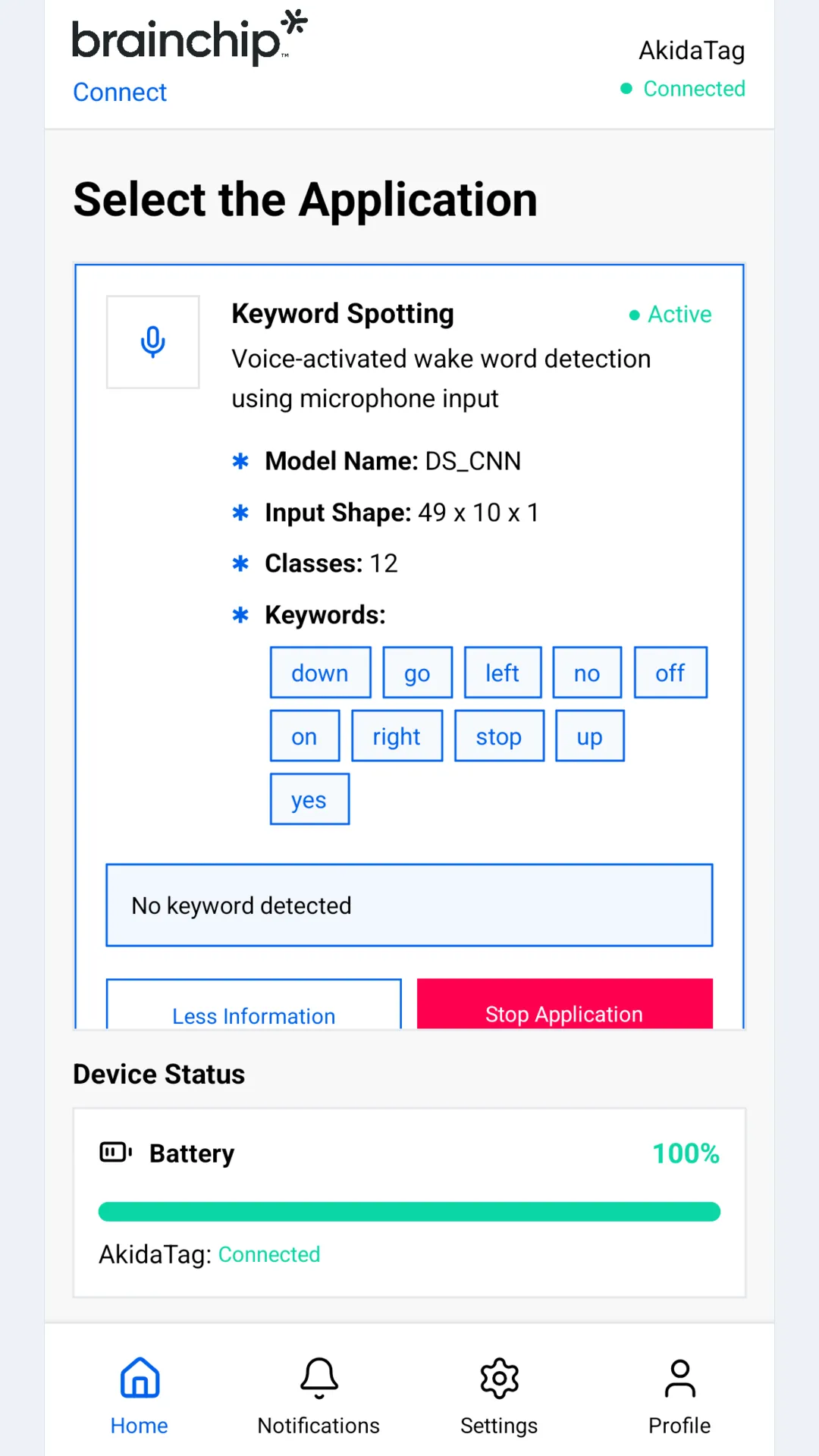
Right after connecting, every card reads Inactive. An AkidaTag runs keyword spotting on its own from power-up, and its red LED flashes on each keyword it hears, but it reports keywords to the phone only once you have tapped Run Application, and that is when the app shows the card as active.
Device Status, under the cards, shows the battery level the board reports, coloured red at 20% or below and amber at 50% or below, with a charging, warning or fault label beside it when the board reports one.
Notifications
Section titled “Notifications”Every detection the app has received since it was opened, newest first and grouped by day: which application reported it, the label, the confidence and how long ago it arrived. See more details is not implemented in this version and says so when tapped.
These entries live inside the app. It does not post system notifications.
Settings
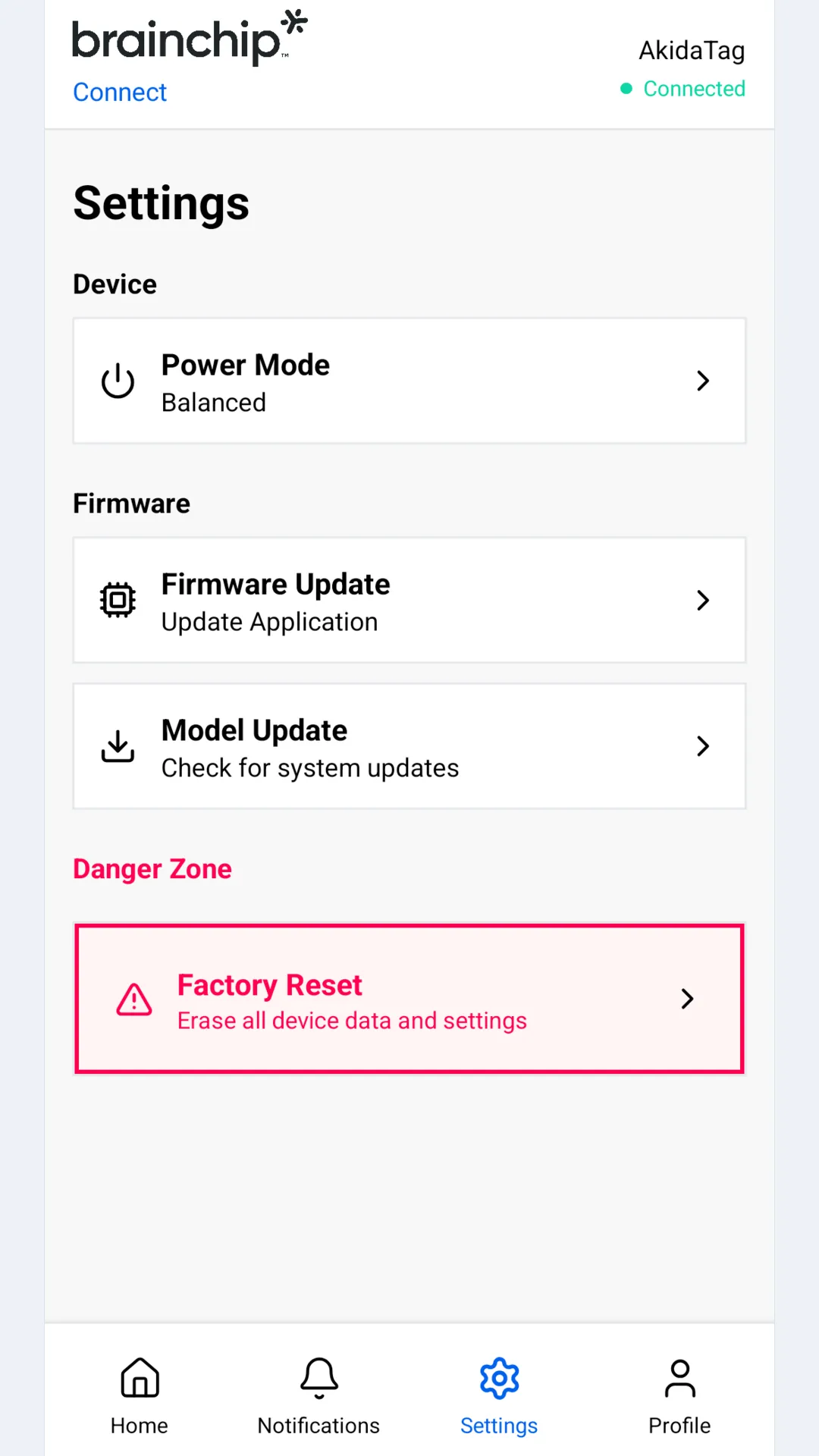
Section titled “Settings”- Power Mode opens a chooser with Performance, Balanced and Power Save. In this version the choice is not sent to the board; that is planned for a later version.
- Firmware Update sends new firmware to the board. See Update the AkidaTag firmware.
- Model Update sends a model package to the board. See Load a model.
- Factory Reset, after a confirmation, sends the board a restart command. An AkidaTag restarts and keeps its model, its learned keywords and its keyword spotting settings. The app then shows Device Restarting; tap Reconnect to return to the device list.
Profile
Section titled “Profile”- About shows the app’s version, a summary of the board hardware and a link to brainchip.com.
- Privacy & Data and Terms & Conditions show the two documents accepted on first run.
- Connected Device names the board; tapping it opens Device Information.
- Unpair Device disconnects, as described under Disconnecting.
Device Information
Section titled “Device Information”Tap the board’s name in the header on Home, Settings or Profile. The sheet shows the name and a hardware summary: the nRF5340 microcontroller, the AKD1500 AI processor and Bluetooth 5.3 LE. That summary describes the AkidaTag and reads the same for every board. The name can be edited in the sheet, but in this version the change is not sent to the board; renaming a board from the app is planned for a later version.